找回密碼
 立即註冊
惟家LINE群QRCODE
    查看: 3|回覆: 0

    標題卡片的按鈕徽章(2026.2 新功能):把區塊標題變成控制面板

    [複製鏈接]

    !lvup!   100%

    363

    主題

    27

    回帖

    2200萬

    積分

    管理員

    積分
    22005752
    發表於 3 天前 | 顯示全部樓層 |閱讀模式
    標題卡片(Heading card)原本只是一行字。

    2026.2 之後它可以放按鈕了,而且可以設定顯示條件。


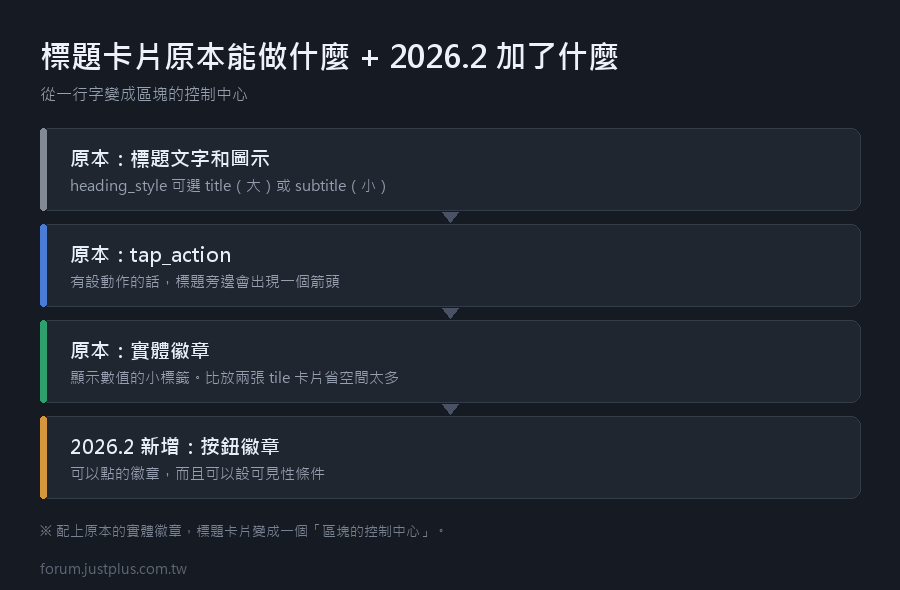
    標題卡片原本能做什麼


    • 顯示標題文字圖示
    • 可以設 tap_action(點了跳到別的頁面)
    • 有設動作的話,標題旁邊會出現一個箭頭
    • 可以選標題樣式:title(大)或 subtitle(小)
    • 可以放實體徽章(顯示數值的小標籤)


    2026.2 加了什麼

    按鈕徽章(button badges)。

    而且可以設定可見性條件 —— 依實體狀態決定要不要顯示。

    配上原本的實體徽章,標題卡片變成一個「區塊的控制中心」。

    基本用法
    1. type: heading
    2. heading: 客廳
    3. heading_style: title
    4. icon: mdi:sofa
    5. badges:
    6.   # 實體徽章:顯示數值
    7.   - type: entity
    8.     entity: sensor.living_room_temperature
    9.   - type: entity
    10.     entity: sensor.living_room_humidity
    複製代碼

    這樣標題右邊會出現「26.5°C」「58%」兩個小標籤。

    比放兩張 tile 卡片省空間太多了。


    加上按鈕徽章
    1. type: heading
    2. heading: 客廳
    3. icon: mdi:sofa
    4. badges:
    5.   # 數值(唯讀)
    6.   - type: entity
    7.     entity: sensor.living_room_temperature
    8.   # 按鈕(可以點)
    9.   - type: entity
    10.     entity: light.living_room
    11.     tap_action:
    12.       action: toggle
    13.   # 按鈕:執行腳本
    14.   - type: entity
    15.     entity: script.living_room_movie
    16.     tap_action:
    17.       action: perform-action
    18.       perform_action: script.turn_on
    19.       target:
    20.         entity_id: script.living_room_movie
    複製代碼

    實體徽章和按鈕徽章的差別


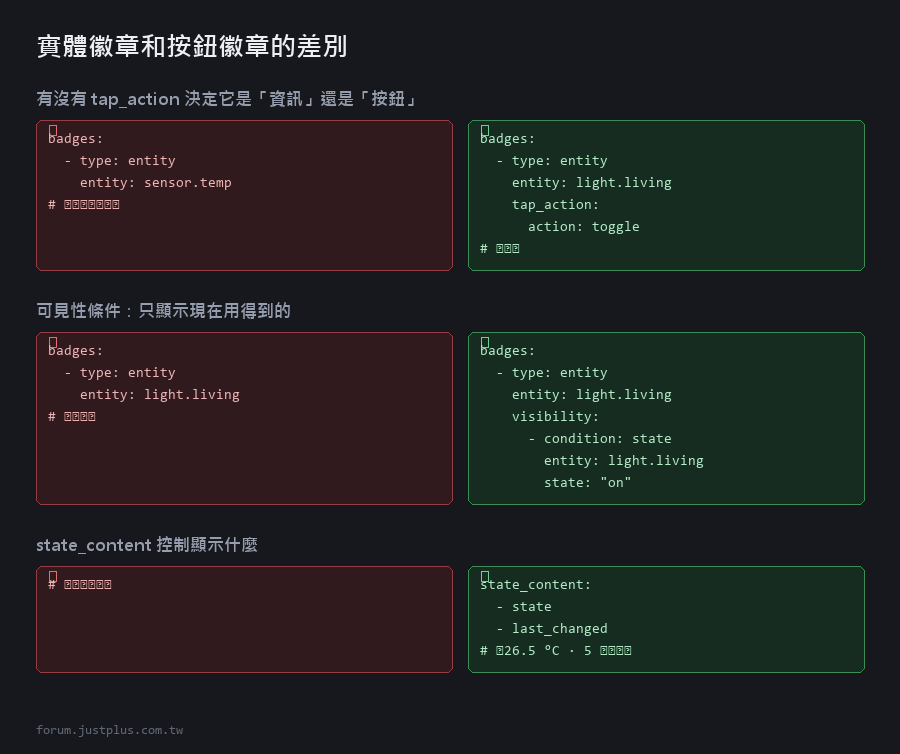
    • 有 tap_action → 可以點,是按鈕
    • 沒有 tap_action → 只顯示,是資訊


    可見性條件(這個最實用)
    1. badges:
    2.   # 只有燈開著的時候才顯示「關燈」按鈕
    3.   - type: entity
    4.     entity: light.living_room
    5.     visibility:
    6.       - condition: state
    7.         entity: light.living_room
    8.         state: "on"
    9.     tap_action:
    10.       action: turn-off
    11.   # 只在夏天顯示冷氣
    12.   - type: entity
    13.     entity: climate.living_room
    14.     visibility:
    15.       - condition: numeric_state
    16.         entity: sensor.outdoor_temperature
    17.         above: 26
    複製代碼

    效果:標題列只顯示「現在用得到」的按鈕。

    實際的配置範例


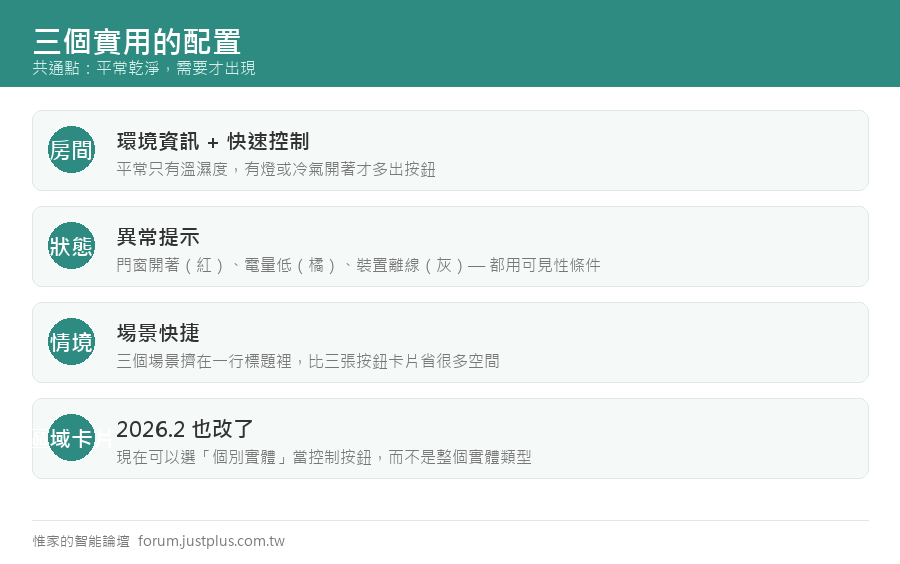
    範例一:房間標題 + 環境資訊 + 快速控制
    1. type: heading
    2. heading: 主臥
    3. heading_style: title
    4. icon: mdi:bed
    5. tap_action:
    6.   action: navigate
    7.   navigation_path: /lovelace/bedroom
    8. badges:
    9.   - type: entity
    10.     entity: sensor.bedroom_temperature
    11.   - type: entity
    12.     entity: sensor.bedroom_humidity
    13.   # 有燈開著才顯示
    14.   - type: entity
    15.     entity: light.bedroom
    16.     visibility:
    17.       - condition: state
    18.         entity: light.bedroom
    19.         state: "on"
    20.     tap_action:
    21.       action: toggle
    22.   # 冷氣開著才顯示
    23.   - type: entity
    24.     entity: climate.bedroom
    25.     visibility:
    26.       - condition: state
    27.         entity: climate.bedroom
    28.         state_not: "off"
    29.     tap_action:
    30.       action: more-info
    複製代碼

    平常標題列只有溫濕度,有東西開著才會多出按鈕。

    範例二:異常提示
    1. type: heading
    2. heading: 家裡狀態
    3. icon: mdi:home-heart
    4. badges:
    5.   # 有門窗開著才顯示(紅色)
    6.   - type: entity
    7.     entity: binary_sensor.any_door_open
    8.     color: red
    9.     visibility:
    10.       - condition: state
    11.         entity: binary_sensor.any_door_open
    12.         state: "on"
    13.     tap_action:
    14.       action: navigate
    15.       navigation_path: /lovelace/security
    16.   # 有裝置電量低才顯示
    17.   - type: entity
    18.     entity: sensor.low_battery_count
    19.     color: orange
    20.     visibility:
    21.       - condition: numeric_state
    22.         entity: sensor.low_battery_count
    23.         above: 0
    24.   # 有裝置離線才顯示
    25.   - type: entity
    26.     entity: sensor.unavailable_entities
    27.     color: grey
    28.     visibility:
    29.       - condition: numeric_state
    30.         entity: sensor.unavailable_entities
    31.         above: 0
    複製代碼

    一切正常的時候標題列是乾淨的,有問題才會跳出來。

    範例三:場景快捷
    1. type: heading
    2. heading: 情境
    3. icon: mdi:palette
    4. badges:
    5.   - type: entity
    6.     entity: scene.movie
    7.     tap_action:
    8.       action: perform-action
    9.       perform_action: scene.turn_on
    10.       target:
    11.         entity_id: scene.movie
    12.   - type: entity
    13.     entity: scene.dinner
    14.     tap_action:
    15.       action: perform-action
    16.       perform_action: scene.turn_on
    17.       target:
    18.         entity_id: scene.dinner
    19.   - type: entity
    20.     entity: scene.bedtime
    21.     tap_action:
    22.       action: perform-action
    23.       perform_action: scene.turn_on
    24.       target:
    25.         entity_id: scene.bedtime
    複製代碼

    三個場景擠在一行標題裡,比三張按鈕卡片省很多空間。


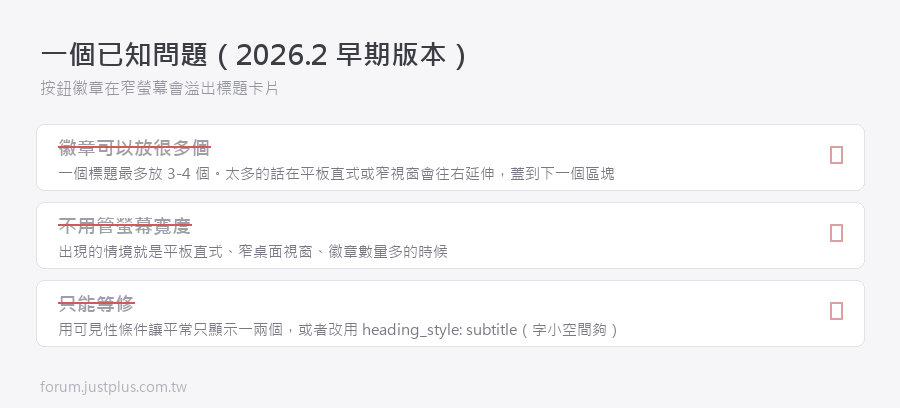
    一個已知問題(2026.2 早期版本)

    按鈕徽章在螢幕比較窄的時候會溢出標題卡片
    往右延伸蓋到下一個區塊

    出現的情境


    • 平板的直式畫面
    • 比較窄的桌面視窗
    • 徽章數量比較多的時候


    對策


    • 一個標題最多放 3-4 個徽章
    • 可見性條件讓平常只顯示一兩個
    • 更新到最新的修正版(這種前端 bug 通常很快會修)
    • 或者改用 heading_style: subtitle(字比較小,空間比較夠)


    徽章的其他選項
    1. badges:
    2.   - type: entity
    3.     entity: sensor.living_room_temperature
    4.     name: 室溫              # 覆蓋顯示名稱
    5.     icon: mdi:thermometer   # 覆蓋圖示
    6.     color: blue             # 圖示顏色
    7.     show_state: true        # 顯示狀態值
    8.     show_name: false        # 不顯示名稱
    9.     state_content: state    # 顯示什麼(state / name / 屬性名)
    複製代碼

    state_content 可以指定屬性
    1.     state_content: last_changed
    複製代碼

    會顯示「2 小時前」這種相對時間。

    放多個的話用清單
    1.     state_content:
    2.       - state
    3.       - last_changed
    複製代碼

    顯示成「26.5 °C · 5 分鐘前」。

    搭配區域卡片(2026.2 也改了)

    2026.2 之後,區域卡片可以選「個別實體」當控制按鈕
    而不是整個實體類型。

    以前:加一個「燈」控制 → 會顯示那個區域的所有燈。

    現在:可以指定只顯示某幾盞
    1. type: area
    2. area: living_room
    3. display_type: compact
    4. features:
    5.   - type: area-controls
    6.     controls:
    7.       - light.living_room_main
    8.       - switch.living_room_fan
    複製代碼

    對「一個區域有十盞燈但只有兩盞常用」的情況很有幫助。

    我的實際用法

    每個區塊的標題都配一組徽章:


    • 房間區塊 → 溫度 + 濕度 + (有開著的東西才顯示的按鈕)
    • 狀態區塊 → 只有異常才顯示的警示徽章
    • 場景區塊 → 三個最常用的場景按鈕


    這樣做完之後,我的卡片數量少了大概三分之一 ——
    很多「只是要顯示一個數字」的卡片都可以拿掉。

    ---

    下一篇:Tile 卡片完全指南

    這是 Sections 版面最推薦的卡片,功能比你想的多。
    您需要登入後纔可以回帖 登入 | 立即註冊

    本版積分規則

    Archiver|手機版|惟家的智能論壇

    GMT+8, 2026-9-24 12:21 , Processed in 0.077766 second(s), 24 queries .

    快速回覆 返回頂部 返回列表